# Création d’un serveur DNS sous Windows serveur 2019

**Le serveur DNS (Domain Name System) traduit les noms de domaine lisibles par l'homme en adresses IP numériques et vice versa. Il permet donc aux ordinateurs de localiser et de communiquer entre eux. En d'autres termes, il fonctionne comme un annuaire téléphonique de l'internet, facilitant l'accès aux sites web en utilisant des noms de domaine faciles à mémoriser.**

**Avec Windows Server, nous pouvons configurer un serveur DNS en installant le rôle "DNS Server". Cela nous permet de gérer les enregistrements DNS pour notre réseau, comme les enregistrements A, MX, et CNAME, simplifiant ainsi la gestion des noms de domaine et des adresses IP pour nos ressources réseau.**

# Sommaire :

## <span style="color: rgb(0, 0, 0);">1-Création du serveur DNS :</span>

#### [<span style="color: rgb(230, 126, 35);">a) Ajout du rôle DNS</span>](https://docu.lerenard.eu/books/windows-server/page/a-ajout-du-role-dns-N3U "a) Ajout du rôle DNS")

#### [<span style="color: rgb(230, 126, 35);">b) Configuration du DNS</span>](https://docu.lerenard.eu/books/windows-server/page/b-configuration-du-dns "b) Configuration du DNS")

#### [<span style="color: rgb(230, 126, 35);">c) Zone directe </span>](https://docu.lerenard.eu/books/windows-server/page/c-zone-directe "c)	Zone directe")

#### [<span style="color: rgb(230, 126, 35);">d) Zone inversée</span>](https://docu.lerenard.eu/books/windows-server/page/d-zone-inversee "d)	Zone inversée")

#### [<span style="color: rgb(230, 126, 35);">e) Création d’un nom de domaine local</span>](https://docu.lerenard.eu/books/windows-server/page/e-creation-dun-nom-de-domaine-local "e)	Création d’un nom de domaine local")

## <span style="color: rgb(0, 0, 0);">2-Test sur le client</span>

#### [<span style="color: rgb(230, 126, 35);">f) Mise en place de l’ip du serveur DNS sur un client</span>](https://docu.lerenard.eu/books/windows-server/page/f-mise-en-place-de-lip-du-serveur-dns-sur-un-client "f)	Mise en place de l’ip du serveur DNS sur un client")

#### [<span style="color: rgb(230, 126, 35);">g) Test du nom de domaine créée</span>](https://docu.lerenard.eu/books/windows-server/page/g-test-du-nom-de-domaine-creee "g) Test du nom de domaine créée")

# a) Ajout du rôle DNS

<div id="bkmrk-"></div>#### <span style="color: rgb(230, 126, 35);"><span style="color: rgb(186, 55, 42);">a)</span> Ajout du rôle DNS</span>

#### <span style="color: rgb(53, 152, 219);">Avant toute choses, cet exemple s’applique également à d’autre version de Windows server comme 2016 ou 2012 car le concept reste le même.</span>  
<span style="color: rgb(53, 152, 219);">Dans mon cas je suis donc sous Windows server 2019 édition standard. Donc une fois Windows server démarré, vous devriez avoir la fenêtre « <span style="color: rgb(186, 55, 42);">gestionnaire de serveur</span> » qui s’ouvre :</span>

<span style="color: rgb(53, 152, 219);">![image.png](https://docu.lerenard.eu/uploads/images/gallery/2024-04/scaled-1680-/FOh8Q3tLWatDaArJ-image.png)</span>

#### <span style="color: rgb(53, 152, 219);">![image.png](https://docu.lerenard.eu/uploads/images/gallery/2024-04/scaled-1680-/QeLbr6O6DcMXIUTx-image.png)Dans cette fenêtre, vous allez cliquer</span>  
<span style="color: rgb(53, 152, 219);">sur «<span style="color: rgb(186, 55, 42);"> Gérer</span> » puis faite « <span style="color: rgb(186, 55, 42);">ajouter des</span></span>  
<span style="color: rgb(53, 152, 219);"><span style="color: rgb(186, 55, 42);">rôles et fonctionnalités</span> ».</span>  
<span style="color: rgb(53, 152, 219);">La fenêtre « <span style="color: rgb(186, 55, 42);">Assistant Ajout de rôles et</span></span>  
<span style="color: rgb(53, 152, 219);"><span style="color: rgb(186, 55, 42);">de fonctionnalités</span> » devrais donc</span>  
<span style="color: rgb(53, 152, 219);">s’ouvrir :</span>

##### <span style="color: rgb(53, 152, 219);">Une fois ici vous ignoré les recommandations pour ce qu’on fait actuellement et faire simplement suivant.</span>

<span style="color: rgb(53, 152, 219);">[![image.png](https://docu.lerenard.eu/uploads/images/gallery/2024-04/scaled-1680-/WDgzpG1AsKH7QaNn-image.png)](https://docu.lerenard.eu/uploads/images/gallery/2024-04/WDgzpG1AsKH7QaNn-image.png)</span>

##### <span style="color: rgb(53, 152, 219);">On arrive donc à choisir les types d’installations. Pour l’ajout du rôle DNS, allez sur «<span style="color: rgb(186, 55, 42);"> Installation basée sur un rôle ou une fonctionnalité </span>» puis faite suivant.</span>

<span style="color: rgb(53, 152, 219);">![image.png](https://docu.lerenard.eu/uploads/images/gallery/2024-04/scaled-1680-/O1CNexEFbavsnrmh-image.png)</span>

##### <span style="color: rgb(53, 152, 219);">Une fois cela effectué, sélectionné votre serveur dans « <span style="color: rgb(186, 55, 42);">pool de serveurs</span> ». Pour ce que l’on fait, pas besoin de sélectionner l’option « <span style="color: rgb(186, 55, 42);">disque dur virtuel</span> ». Puis faite suivant.</span>

<span style="color: rgb(53, 152, 219);">[![image.png](https://docu.lerenard.eu/uploads/images/gallery/2024-04/scaled-1680-/eidSC52QkuxQnLzH-image.png)](https://docu.lerenard.eu/uploads/images/gallery/2024-04/eidSC52QkuxQnLzH-image.png)</span>

##### <span style="color: rgb(53, 152, 219);">Arrivé ici, vous devrez donc sélectionner Serveurs DNS.</span>

<span style="color: rgb(53, 152, 219);">[![image.png](https://docu.lerenard.eu/uploads/images/gallery/2024-04/scaled-1680-/LOiqXY1v3A4oNRfS-image.png)](https://docu.lerenard.eu/uploads/images/gallery/2024-04/LOiqXY1v3A4oNRfS-image.png)</span>

##### <span style="color: rgb(53, 152, 219);">Après avoir fait suivant ignorer « <span style="color: rgb(186, 55, 42);">Sélectionner des fonctionnalités</span> ». Cela est utile que si on cherche des choses bien précises.</span>

<span style="color: rgb(53, 152, 219);">[![image.png](https://docu.lerenard.eu/uploads/images/gallery/2024-04/scaled-1680-/gMnEbnFMGDzFakkS-image.png)](https://docu.lerenard.eu/uploads/images/gallery/2024-04/gMnEbnFMGDzFakkS-image.png)</span>

<span style="color: rgb(53, 152, 219);">[![image.png](https://docu.lerenard.eu/uploads/images/gallery/2024-04/scaled-1680-/TJrK5rwAXwBMKebD-image.png)](https://docu.lerenard.eu/uploads/images/gallery/2024-04/TJrK5rwAXwBMKebD-image.png)</span>

##### <span style="color: rgb(53, 152, 219);">Cette fenêtre va s’ouvrir. Elle résume ce qu’on a</span>  
<span style="color: rgb(53, 152, 219);">sélectionné et se qui vas donc être ajouté à</span>  
<span style="color: rgb(53, 152, 219);">nôtre Windows server. </span><span style="color: rgb(53, 152, 219);">Faite « <span style="color: rgb(186, 55, 42);">Ajouter des fonctionnalités</span> ».</span>

##### <span style="color: rgb(53, 152, 219);">Donc arrivé ici, on confirme les ajouts. Dans le doute, je coche « <span style="color: rgb(186, 55, 42);">Redémarrer automatiquement le serveur de destination, si nécessaire </span>» vu que le serveur n’a rien derrière qui est en fonctionnement et comme ça on n’a pas besoin de le faire manuellement si un redémarrage est requis. Cependant vous n’êtes pas obligé de la cocher pour ajouter se rôle ou des rôles : </span>

<div class="page-content clearfix" component="page-display" id="bkmrk--8" option:page-display:page-id="3"><div dir="auto"></div></div>[![image.png](https://docu.lerenard.eu/uploads/images/gallery/2024-04/scaled-1680-/zMiWWWgSSBiIkhqg-image.png)](https://docu.lerenard.eu/uploads/images/gallery/2024-04/zMiWWWgSSBiIkhqg-image.png)

# b) Configuration du DNS

#### <span style="background-color: rgb(255, 255, 255); color: rgb(230, 126, 35);">b) Configuration du DNS</span>


##### <span style="color: black;"><span style="mso-spacerun: yes;">![](https://docu.lerenard.eu/uploads/images/gallery/2024-04/4EansZdPOE0xxC1t-embedded-image-x5hik13g.png) </span></span><span style="color: rgb(53, 152, 219);">Pour le rôle DNS, Windows server n’est pas sensé redémarré. Donc dans</span> <span style="color: #843c0b;">« Gestionnaire de serveur »,</span><span style="color: rgb(53, 152, 219);"> cliqué sur DNS.</span><span style="color: #843c0b;"><span style="color: rgb(53, 152, 219);"> </span> </span><span style="color: rgb(53, 152, 219);">Dans la catégorie</span> <span style="color: #843c0b;">« SERVEURS », </span><span style="color: rgb(53, 152, 219);">sélectionné vôtre Windows avec un clic droit puis</span><span style="color: #843c0b;"> « Gestionnaire DNS ».</span>

### <span style="color: #843c0b;">![](https://docu.lerenard.eu/uploads/images/gallery/2024-04/DOp63fnIxXm4zMfW-embedded-image-sv9wlplf.png)</span>

###  

##### <span style="color: rgb(35, 111, 161);">Arrivé ici, faite un clic droit sur votre serveur et faite</span> « <span style="color: rgb(186, 55, 42);">Configurer un serveur DNS…</span> » :

#### <span style="color: #843c0b;">![](https://docu.lerenard.eu/uploads/images/gallery/2024-04/Xd7WGfqj25uAqIY3-embedded-image-gsttyzbg.png)</span>

<span style="color: #843c0b;">![](https://docu.lerenard.eu/uploads/images/gallery/2024-04/GPeK0lOuASfujUZ0-embedded-image-ok3frdcm.png)</span>

#### <span style="color: rgb(53, 152, 219);">La fenêtre de  
bienvenue dans  
l’assistant de  
configuration s’ouvre.  
Vous faite suivant.</span>

[![image.png](https://docu.lerenard.eu/uploads/images/gallery/2024-04/scaled-1680-/Its0hveSFJ01DnMY-image.png)](https://docu.lerenard.eu/uploads/images/gallery/2024-04/Its0hveSFJ01DnMY-image.png)

<p class="callout info"><span style="color: #843c0b;">Donc ici, on a le choix entre 3  
options.  
Crée qu’une zone directe bien pour  
une petite entreprise et simple a  
géré.  
Crée une zone directe et inversée,  
donc création d’une zone directe et  
d’une zone inversée. Une zone  
inversée est plus performante qu’une  
zone directe bien pour de grand  
réseau et indispensable pour certain  
périphérique réseau.  
Et la troisième option configure  
uniquement les indications de racine  
pour votre serveur DNS. Les  
indications de racine sont des  
informations sur les serveurs DNS  
racine qui permettent à votre serveur  
DNS de résoudre les noms de  
domaine complets (FQDN).</span></p>

##### <span style="color: rgb(53, 152, 219);">Donc pour la documentation je vais prendre la 3ème option. Si vous sélectionné la première option, vous devez donc vous arrêter au moment de la configuration de la zone inverse.</span>

# c)	Zone directe

<span style="color: rgb(230, 126, 35);">c<a name="cc" style="color: rgb(230, 126, 35);"></a></span><span style="font-size: 14.0pt; line-height: 104%; mso-bidi-font-family: Calibri; color: #ed7d31;"><span style="mso-list: Ignore;">)<span style="font: 7.0pt 'Times New Roman';"> </span></span></span><span style="font-size: 14.0pt; line-height: 104%; color: #ed7d31;">Zone directe</span>

#### <span style="color: #0070c0;">Donc pour la documentation je vais prendre la 3ème option. Si vous sélectionné la première option, vous devez donc vous arrêter au moment de la configuration de la zone inverse.</span>

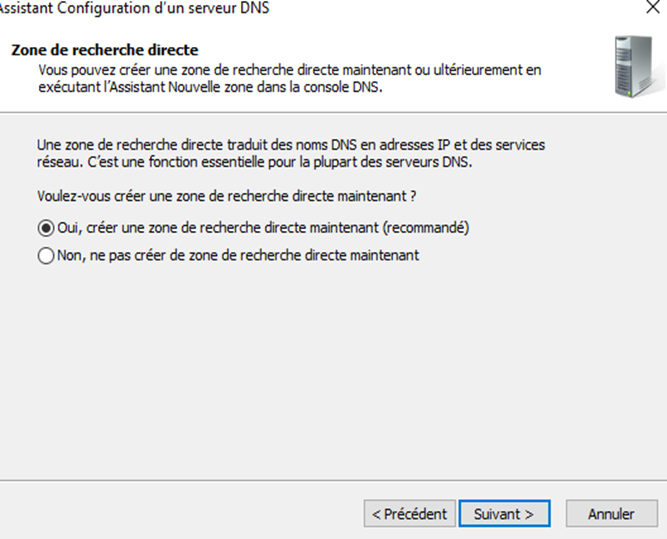
#### <span style="color: rgb(35, 111, 161);">Donc on va prendre la première option qui est crée la zone directe maintenant.</span>

#### ![](https://docu.lerenard.eu/uploads/images/gallery/2024-04/arwoSQAPMDLAOIBq-embedded-image-xvsm7vik.png)


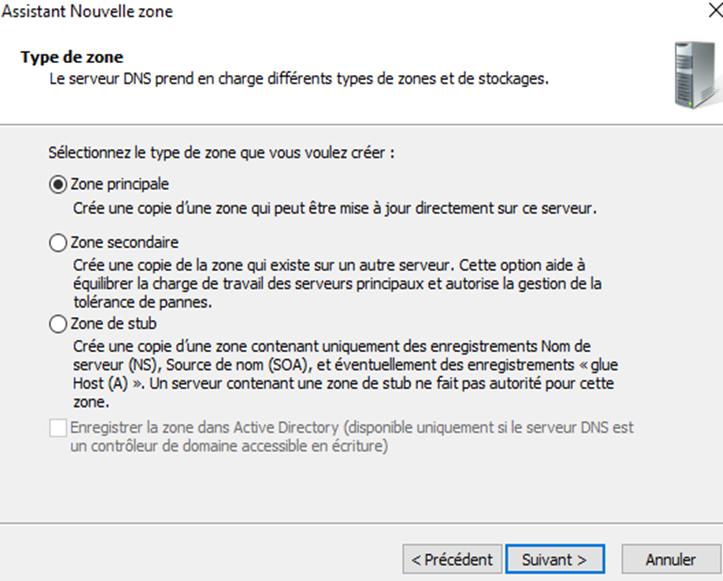
#### <span style="color: #0070c0;">Donc on fait zone principale car c’est un serveur DNS principal que nous créons.</span>

#### <span style="color: #0070c0;"> [![TViCQbvEQZfwkS6j-embedded-image-ykrtnlpk.png](https://docu.lerenard.eu/uploads/images/gallery/2024-04/scaled-1680-/Q0MhxWKYIpiiltNE-tvicqbveqzfwks6j-embedded-image-ykrtnlpk.png)](https://docu.lerenard.eu/uploads/images/gallery/2024-04/Q0MhxWKYIpiiltNE-tvicqbveqzfwks6j-embedded-image-ykrtnlpk.png)</span>


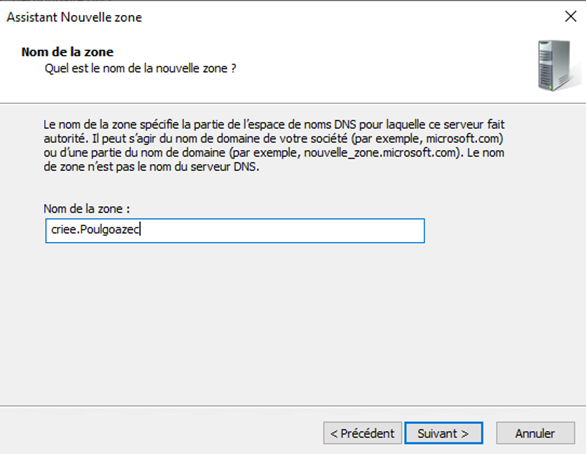
#### <span style="color: #0070c0;">Donc vous mettez le nom que vous voulez pour votre DNS. Dans mon exemple c’est criee.Poulgoazec mas vous pouvez très bien mettre :</span>

#### <span style="color: #ed7d31;">Terra.hifi, Moji.fr, domaine.com, exemple.obligatoire</span>

#### <span style="color: #0070c0;">![](https://docu.lerenard.eu/uploads/images/gallery/2024-04/UKKCrn8qLUHxpRSZ-embedded-image-26syszfq.png)</span>


#### <span style="color: #0070c0;"><span style="mso-spacerun: yes;"> </span>Une fois que vous avez cliquez sur suivant, il dira le nom du fichier DNS qu’il créa.</span>

#### <span style="color: #0070c0;"> </span>

#### <span style="color: #0070c0;"><span style="mso-spacerun: yes;">![](https://docu.lerenard.eu/uploads/images/gallery/2024-04/yJwJ44z9W2YJ5hfs-embedded-image-goyf1q47.png)</span></span>

<span style="color: #0070c0;"><span style="mso-spacerun: yes;">  
</span></span>

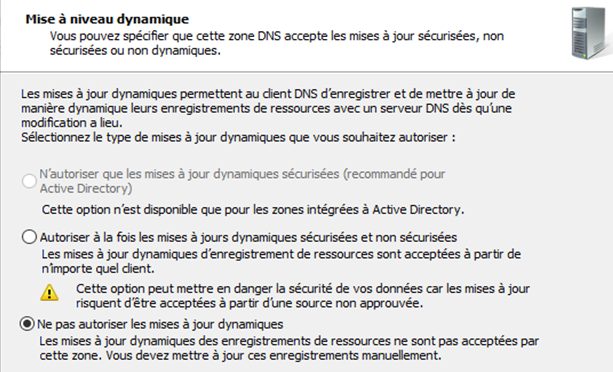
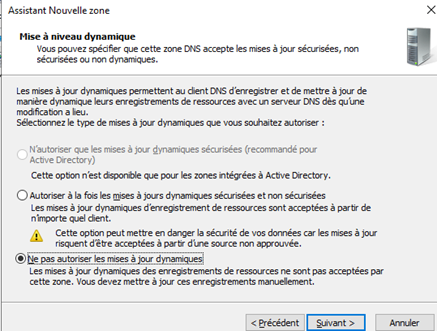
#### <span style="color: #0070c0;">Puis on met pour des questions de sécurité, on ne met pas enregistrement automatique (dynamique).</span>

#### <span style="color: #0070c0;"> </span>

#### <span style="color: #0070c0;"> </span>

#### <span style="color: #0070c0;"> </span>

#### <span style="color: #0070c0;"> </span>

#### <span style="font-size: 14.0pt; line-height: 104%; color: #ed7d31;"> </span>

#### <span style="font-size: 14.0pt; line-height: 104%; color: #ed7d31;"></span>

# d)	Zone inversée

##### <span style="color: rgb(230, 126, 35);">d<a name="d" style="color: rgb(230, 126, 35);"></a><span style="font-size: 14pt; line-height: 104%;"><span style="mso-list: Ignore;">)<span style="font: 7.0pt 'Times New Roman';"> </span></span></span><span style="font-size: 14pt; line-height: 104%;">Zone inversée </span></span>

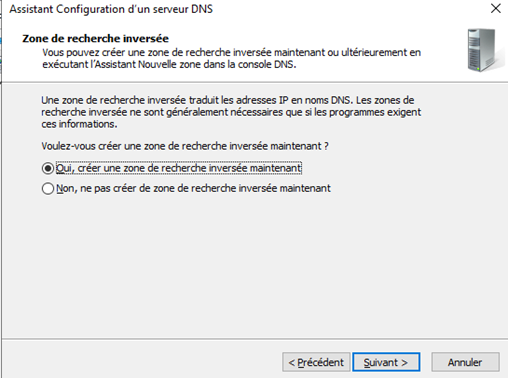
##### <span style="color: #0070c0;">Ensuite, nous créons la zone inverse. Vous sélectionné<span style="mso-tab-count: 6;"> </span><span style="mso-spacerun: yes;"> </span>donc Oui :</span>

![](https://docu.lerenard.eu/uploads/images/gallery/2024-04/Uf8KEDGTCrO3qdBN-embedded-image-8uazrq0j.png)

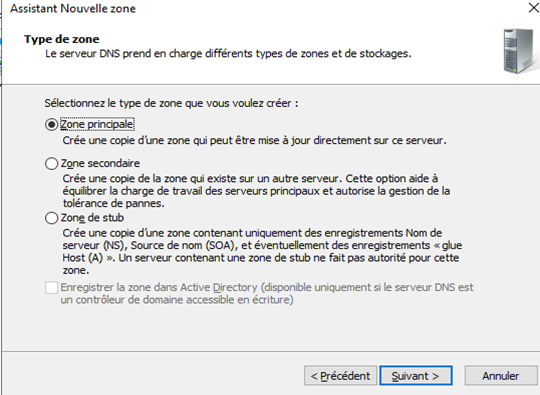
##### <span style="color: #0070c0;"><span style="mso-spacerun: yes;"> </span>Cette Zone inverse sera donc une Zone inverse principal :</span>

![](https://docu.lerenard.eu/uploads/images/gallery/2024-04/NeBAeKgSpGajze7G-embedded-image-ltw6iacb.png)

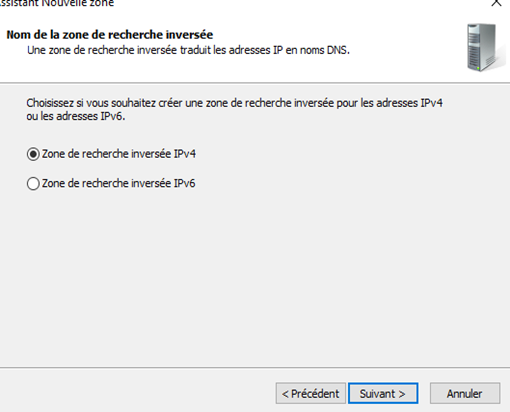
##### <span style="color: #0070c0;">Pour mon cas, c’est une zone inverse en IPv4. Si vous le souhaitais, vous pouvez faire en IPv6 mais je ne garantie pas que cela soit pareil :</span>

![](https://docu.lerenard.eu/uploads/images/gallery/2024-04/xPOvApmMqYIjaNU0-embedded-image-higbia9w.png)

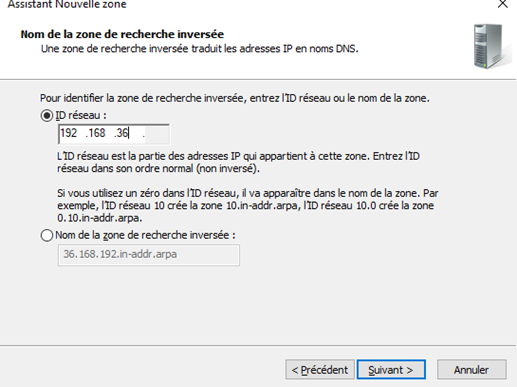
##### <span style="color: #0070c0;">On met l’ip réseau dans ID réseau. Pour mon cas, l’ip réseau est 192.168.36.0/24</span><span style="color: #4472c4;"> :</span>

<span style="color: #a5a5a5;">![](https://docu.lerenard.eu/uploads/images/gallery/2024-04/TL5Zl34LLzL5FAPN-embedded-image-khkzorrk.png)</span>

<p class="callout info"><span style="color: #a5a5a5;">Par exemple une ip réseau peux être 172.22.30.0/24 ou 172.36.0.0/16</span></p>

<span style="color: #0070c0;"> </span>

<span style="color: #0070c0;"> </span>

<span style="color: #0070c0;"> </span>

<span style="color: #0070c0;"> </span>

<span style="color: #0070c0;"> </span>

<span style="color: #0070c0;"> </span>

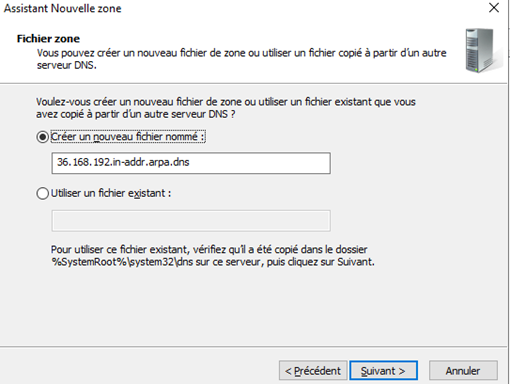
##### <span style="color: #0070c0;">Et il nous dit le nom qu’il donnera au fichier de la zone inverse : </span>
<span style="color: #0070c0;"><span style="mso-spacerun: yes;"> </span></span>![](https://docu.lerenard.eu/uploads/images/gallery/2024-04/HLzqdISSaWLngsHD-embedded-image-cbgj9epg.png)

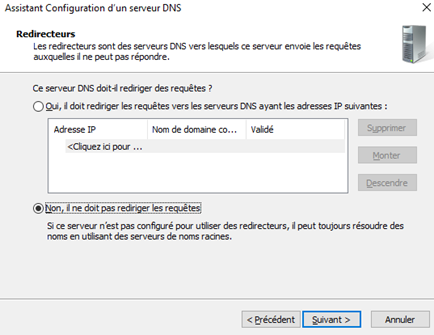
##### <span style="color: #0070c0;">Comme plus haut on n’autorise ni les mises à jour dynamiques ni rediriger les requêtes vers un autre serveur DNS :</span>

![](https://docu.lerenard.eu/uploads/images/gallery/2024-04/DmDyneWgorVF3rdH-embedded-image-u5l30a11.png)  
![](https://docu.lerenard.eu/uploads/images/gallery/2024-04/EuouWHgGGZRmOLbp-embedded-image-w4ecyckz.png)

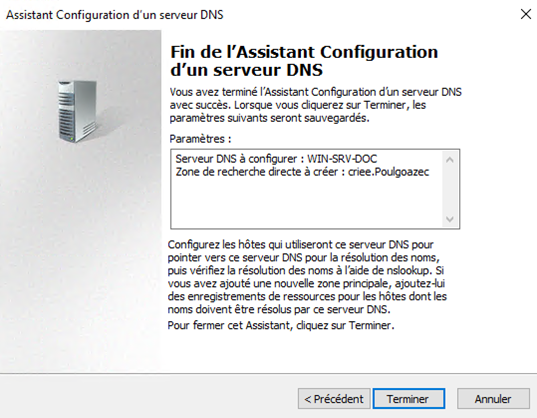
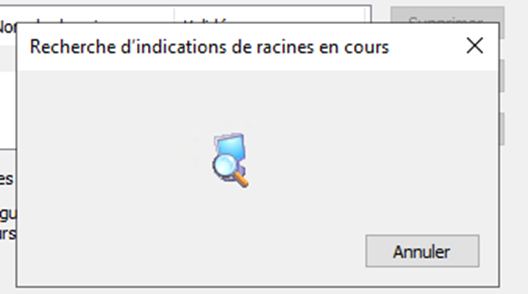
##### <span style="color: #0070c0;">Donc il va rechercher des indications de racines mais il ne va pas en trouver et une fois le message fermé c’est la fin de configuration : </span>
![](https://docu.lerenard.eu/uploads/images/gallery/2024-04/a6bT6TIYrIkjz2UA-embedded-image-cllkp9qp.png)

[![573d2351-eb17-48c1-bb95-9e20d2f44969.png](https://docu.lerenard.eu/uploads/images/gallery/2024-04/scaled-1680-/x1QFdOdBfA2eRX8F-573d2351-eb17-48c1-bb95-9e20d2f44969.png)](https://docu.lerenard.eu/uploads/images/gallery/2024-04/x1QFdOdBfA2eRX8F-573d2351-eb17-48c1-bb95-9e20d2f44969.png)

# e)	Création d’un nom de domaine local

##### <span style="color: rgb(230, 126, 35);">e<a name="e" style="color: rgb(230, 126, 35);"></a><span style="font-size: 14pt; line-height: 104%;"><span style="mso-list: Ignore;">)<span style="font: 7.0pt 'Times New Roman';"> </span></span></span><span style="font-size: 14pt; line-height: 104%;">Création d’un nom de domaine local</span></span>

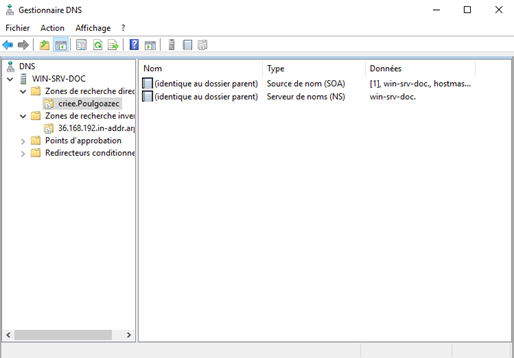
##### <span style="color: #0070c0;">Arrivé ici, vous faite </span><span style="color: #ed7d31;">votreserveur&gt;zone de recherche direct&gt;votrenomdns.exemple</span>

##### <span style="color: #0070c0;">Dans mon cas c’est criee.Poulgoazec</span>

![](https://docu.lerenard.eu/uploads/images/gallery/2024-04/NYwruTbyzXWPq1t4-embedded-image-efkzqi3c.png)

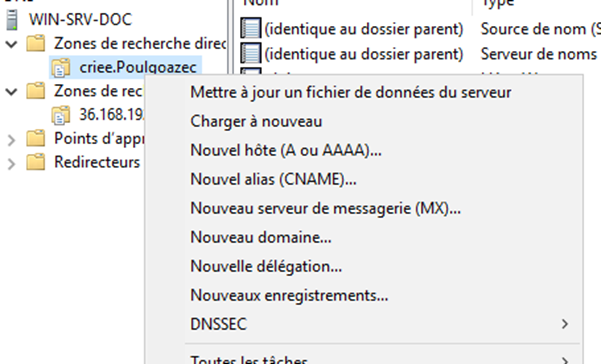
##### <span style="color: #0070c0;">Vous faite clique droite sur votre nom de domaine et faut faire : </span>

<span style="font-size: 14.0pt; line-height: 104%; color: #ed7d31;">Nouvel hôte (A ou AAAA)</span>

[![download.png](https://docu.lerenard.eu/uploads/images/gallery/2024-04/scaled-1680-/wpcD6D6yNpHkev1d-download.png)](https://docu.lerenard.eu/uploads/images/gallery/2024-04/wpcD6D6yNpHkev1d-download.png)

##### <span style="font-size: 14.0pt; line-height: 104%; color: #ed7d31;"> </span>

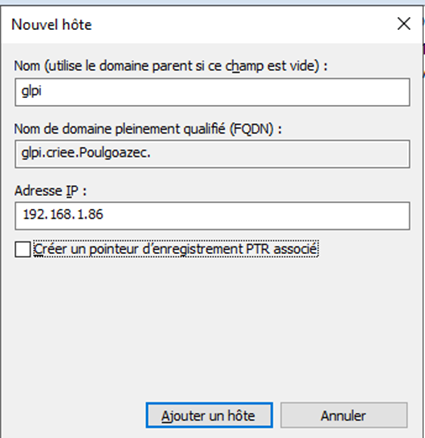
##### <span style="color: #0070c0;">Donc vous mettais un nom comme vous voulez, dans mon cas c’est glpi. </span><span style="color: #0070c0;">Après il montre le nom complet que ça fera. </span><span style="color: #0070c0;">Et a la fin il faut mettre l’ip du serveur ou services sur le quel le nom de domaine dirigera.</span>

##### <span style="color: #0070c0;">Puis vous faite </span><span style="color: #ed7d31;">Ajouter un hôte</span>

![](https://docu.lerenard.eu/uploads/images/gallery/2024-04/Xa19R9QBBh4ohTOC-embedded-image-ahf9fvax.png)

<p class="callout info align-left"><span style="color: #0070c0;">Donc dans mon cas si je tape glpi.criee.Poulgoazec cela redirigera vers 192.168.1.86 caché par glpi.criee.Poulgoazec<span style="font-size: 12.0pt; line-height: 104%; color: #ed7d31;">.</span></span></p>

<span style="font-size: 14.0pt; line-height: 104%; color: #ed7d31;"></span>

# f)	Mise en place de l’ip du serveur DNS sur un client

##### <span style="color: rgb(230, 126, 35);">f<a name="BBB" style="color: rgb(230, 126, 35);"></a><span style="font-size: 14pt; line-height: 104%;"><span style="mso-list: Ignore;">)<span style="font: 7.0pt 'Times New Roman';"> </span></span></span><span style="font-size: 14pt; line-height: 104%;">Mise en place de l’ip du serveur DNS</span></span>

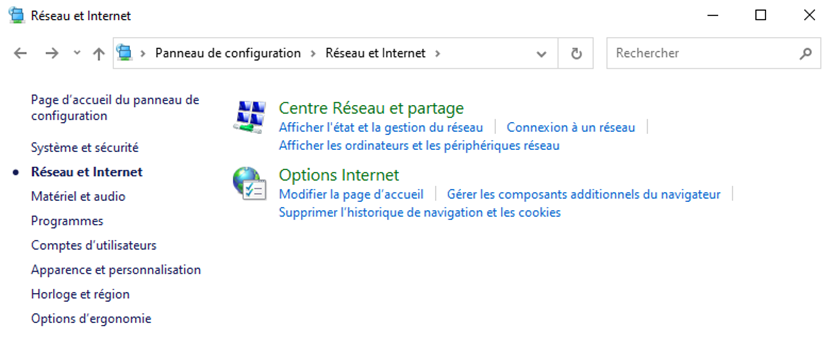
##### <span style="color: #0070c0;">Sur un autre système, pour mon cas Windows 10, allé dans </span><span style="color: #ed7d31;">« Panneau de configuration &gt; Réseau et Internet&gt; Centre Réseau et partage » :</span>

![](https://docu.lerenard.eu/uploads/images/gallery/2024-04/aBMLaCvMz6b2wyTE-embedded-image-qc2kijft.png)

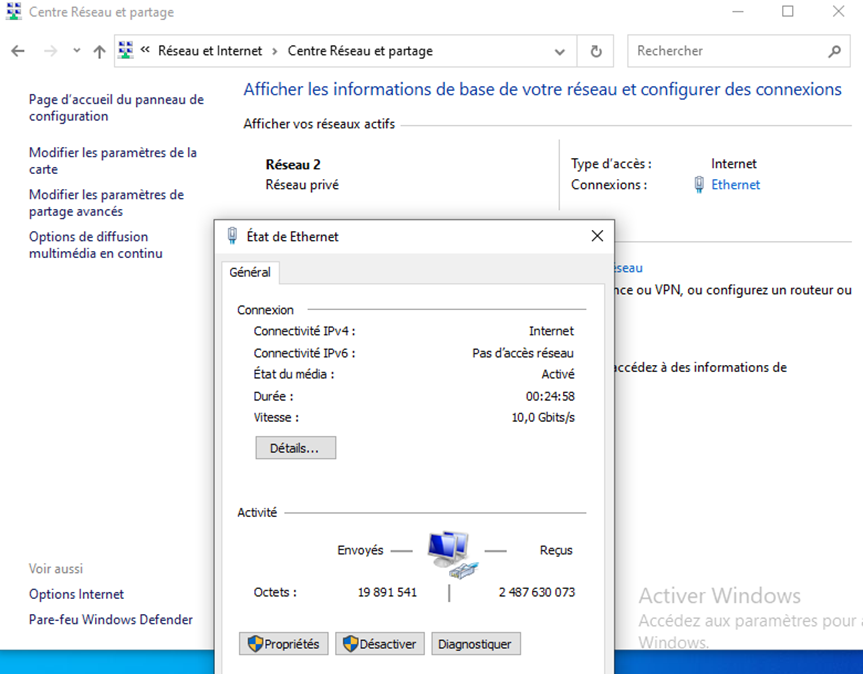
##### <span style="color: #0070c0;">Dans mon cas je clique sur Ethernet mais cela peut différer. Dans mon cas Ethernet est la carte par la quel internet arrive. Puis faite </span><span style="color: #ed7d31;">propriétés </span><span style="color: #0070c0;">:</span>

![](https://docu.lerenard.eu/uploads/images/gallery/2024-04/MuE5awQ1JqZvbHjb-embedded-image-6oc8ebfk.png)

<p class="callout info"><span style="color: #0070c0;"><span style="mso-spacerun: yes;"> </span>Vous devriez donc arriver sur Propriétés de Xxxxx pour moi ces « État de Ethernet ».<span style="mso-spacerun: yes;"> </span></span></p>

##### <span style="color: #0070c0;">Arrivé ici, double cliqué sur </span><span style="color: #ed7d31;">« Protocole Internet version 4 (TCP/IPv4) » :</span>

<span style="color: #ed7d31;">![](https://docu.lerenard.eu/uploads/images/gallery/2024-04/f7R29ig9AodlrlXq-embedded-image-pz6fqowx.png)</span>

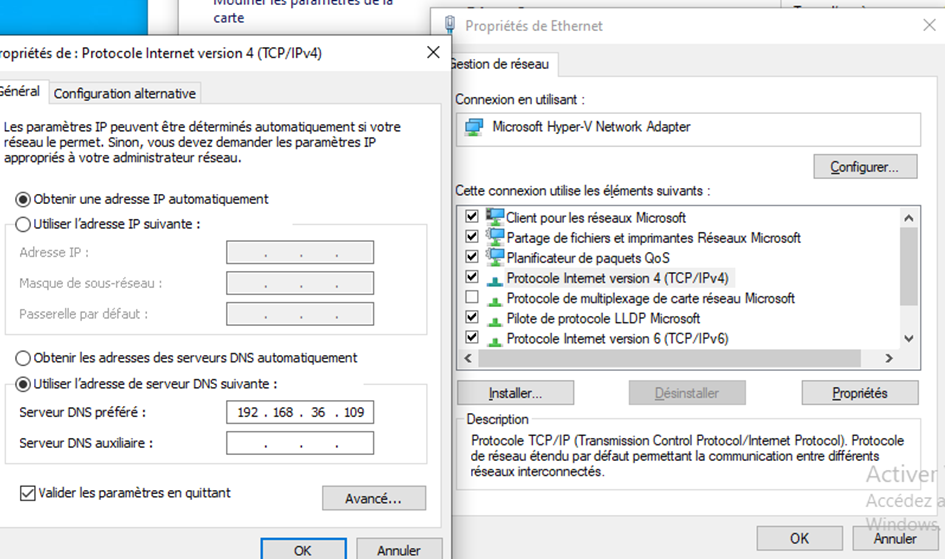
##### <span style="color: #0070c0;">Mettez </span><span style="color: #ed7d31;">« Utiliser l’adresse de serveur DNS suivante : »</span><span style="color: #0070c0;"> et rajouté l’ip de votre serveur DNS. Pour mon cas c’est 192.168.36.109 et coché "<span style="color: rgb(230, 126, 35);">Valider les paramètres en quittant</span>".</span>

# g) Test du nom de domaine créée

#### <span style="color: rgb(230, 126, 35);">g) Test du nom de domaine créée</span>

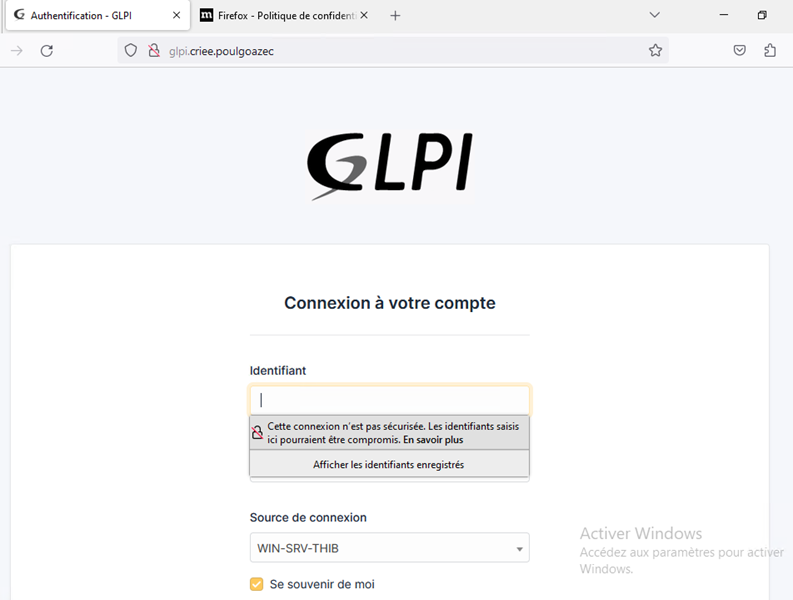
##### <span style="color: #0070c0;">Donc dans un navigateur j’ai écrit glpi.criee.Poulgoazec et cela fonctionne parfaitement bien :<span style="mso-spacerun: yes;"> </span></span>

##### ![](https://docu.lerenard.eu/uploads/images/gallery/2024-04/vQ0Bu7iwoRlQB2Uv-embedded-image-a6abksnd.png)